Email draft
Lucas wrote to Marina
Re: November quote
Hi Marina! Go ahead with the 40 units. I confirm delivery by the 12th and I'll send the receipt as soon as it's out.
BotsAI assistants on your computer
Build a team of bots with a name, a face and memory. They summarize your day, answer email, do research and keep an eye on what you'd forget. Anything sent in your name waits for your yes.
7 days freeCard required to startIncluded in ProWith the AIs you already pay for
You ask. The bot does it and shows you. Each bot has a name, a face and a memory. Here Camila gets a request, talks to Lucas, and the email sits ready in his inbox, waiting for your yes.
A week with your team
Each bot has its own routines: at a set time, on an interval, when another service pings it or when a file lands in a folder. You open Cockpit and the work is already there, waiting for your decision.
Monday, 08:00 · Daily summary
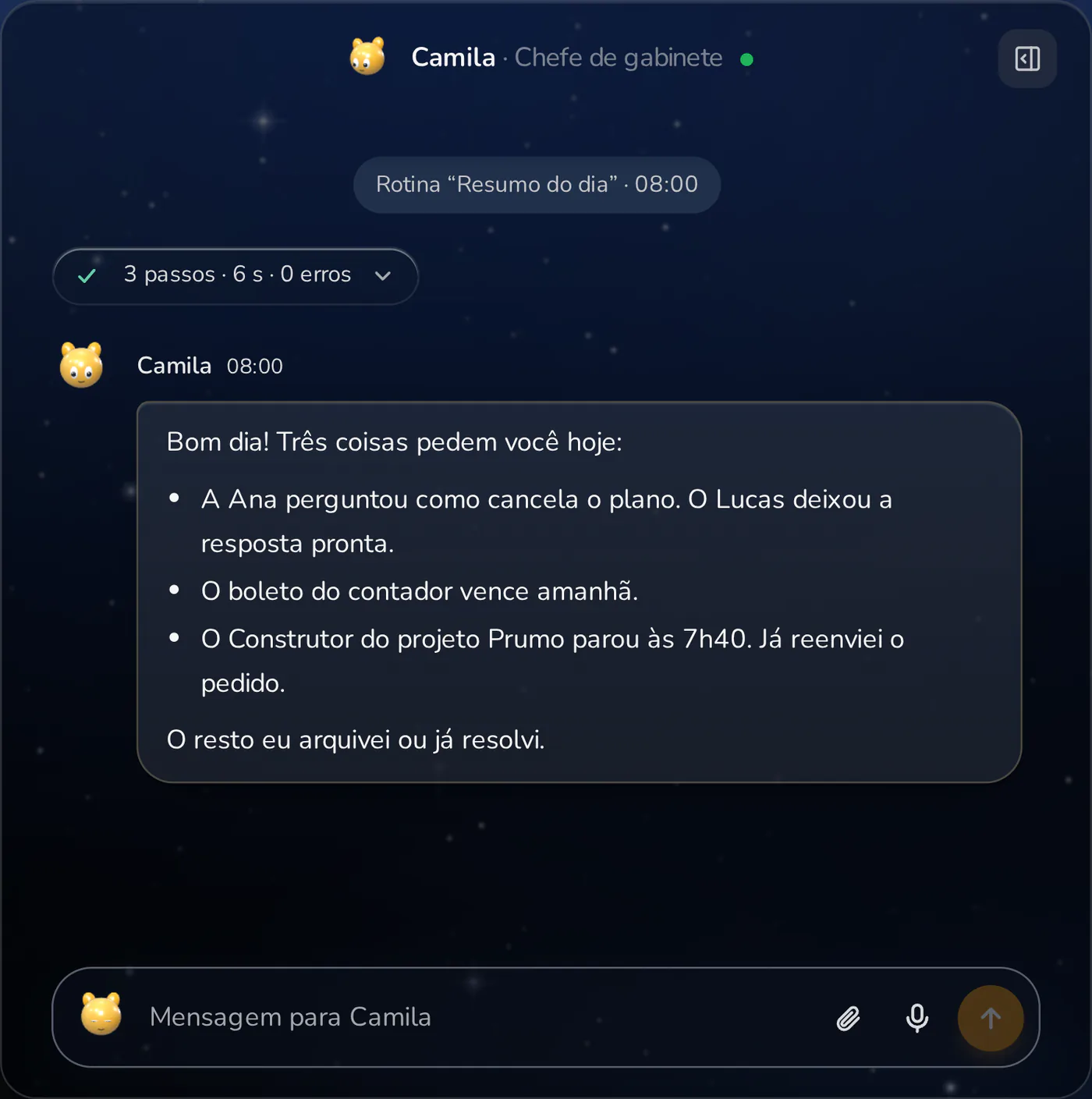
Your day in a 30-second read
Monday, 09:00 · Email triage
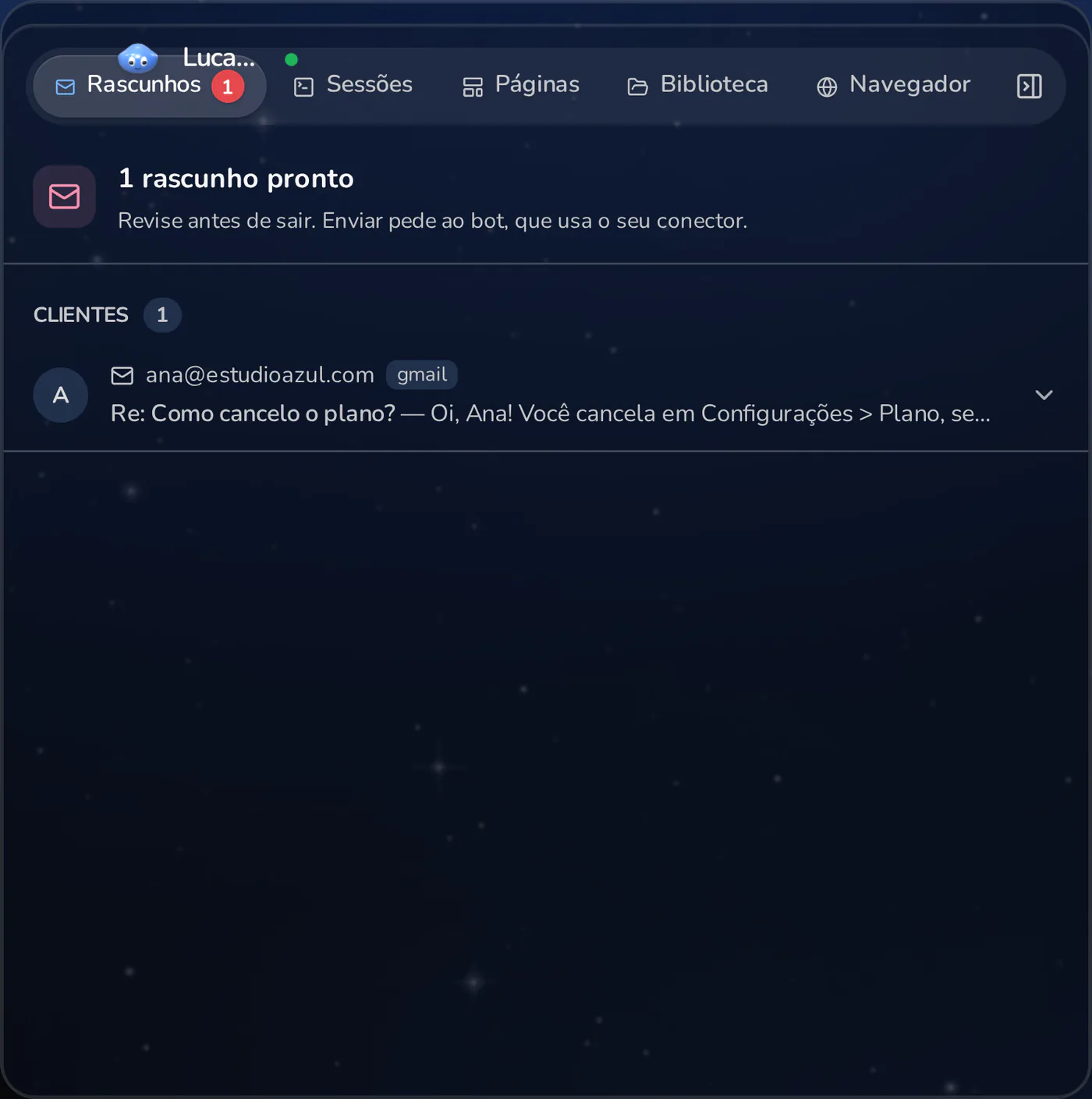
Replies ready, none sent without you
Monday, 10:00 · Subscription sweep
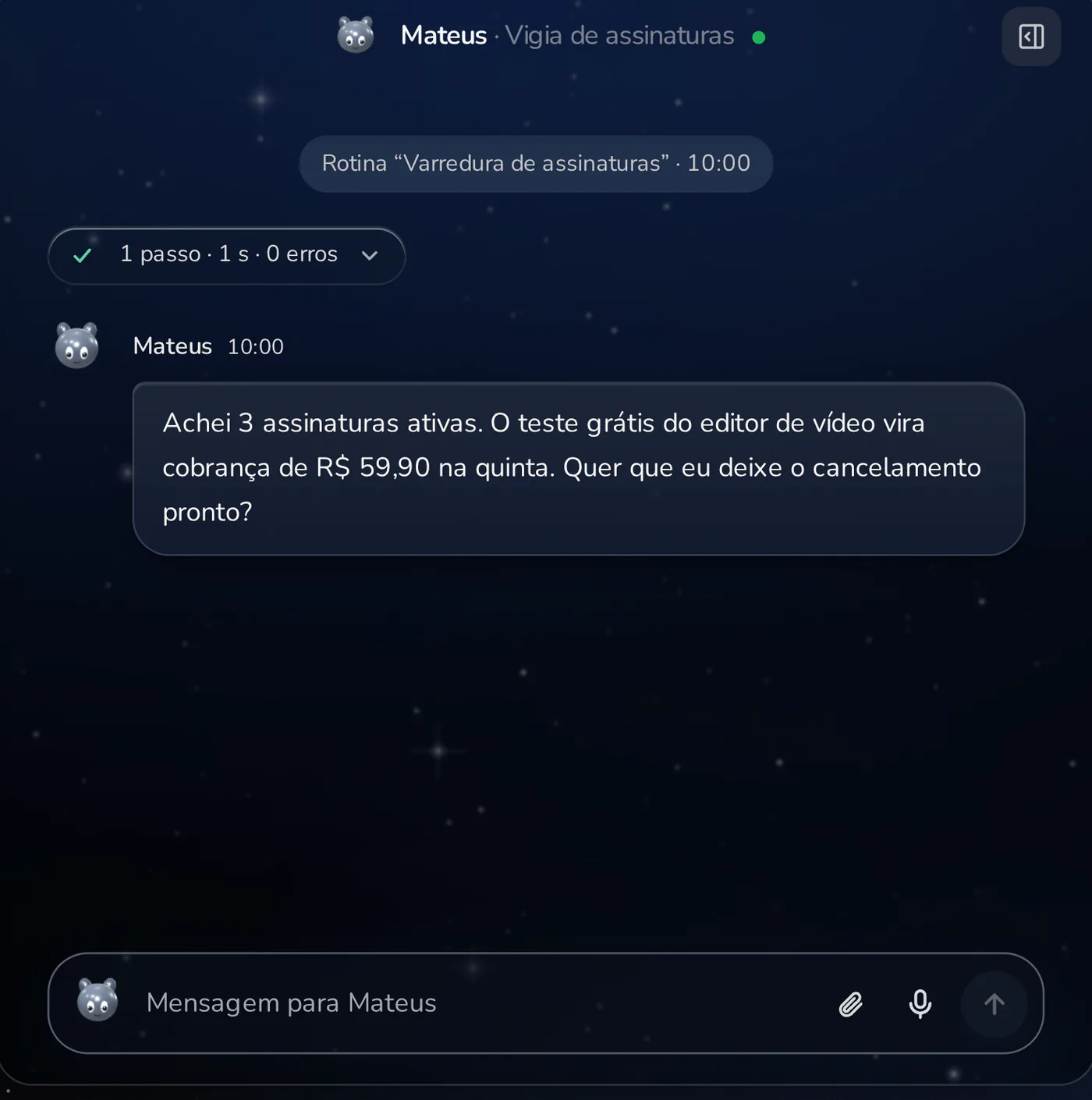
The forgotten charge shows up before it hits
Monday, 22:00 · Account research
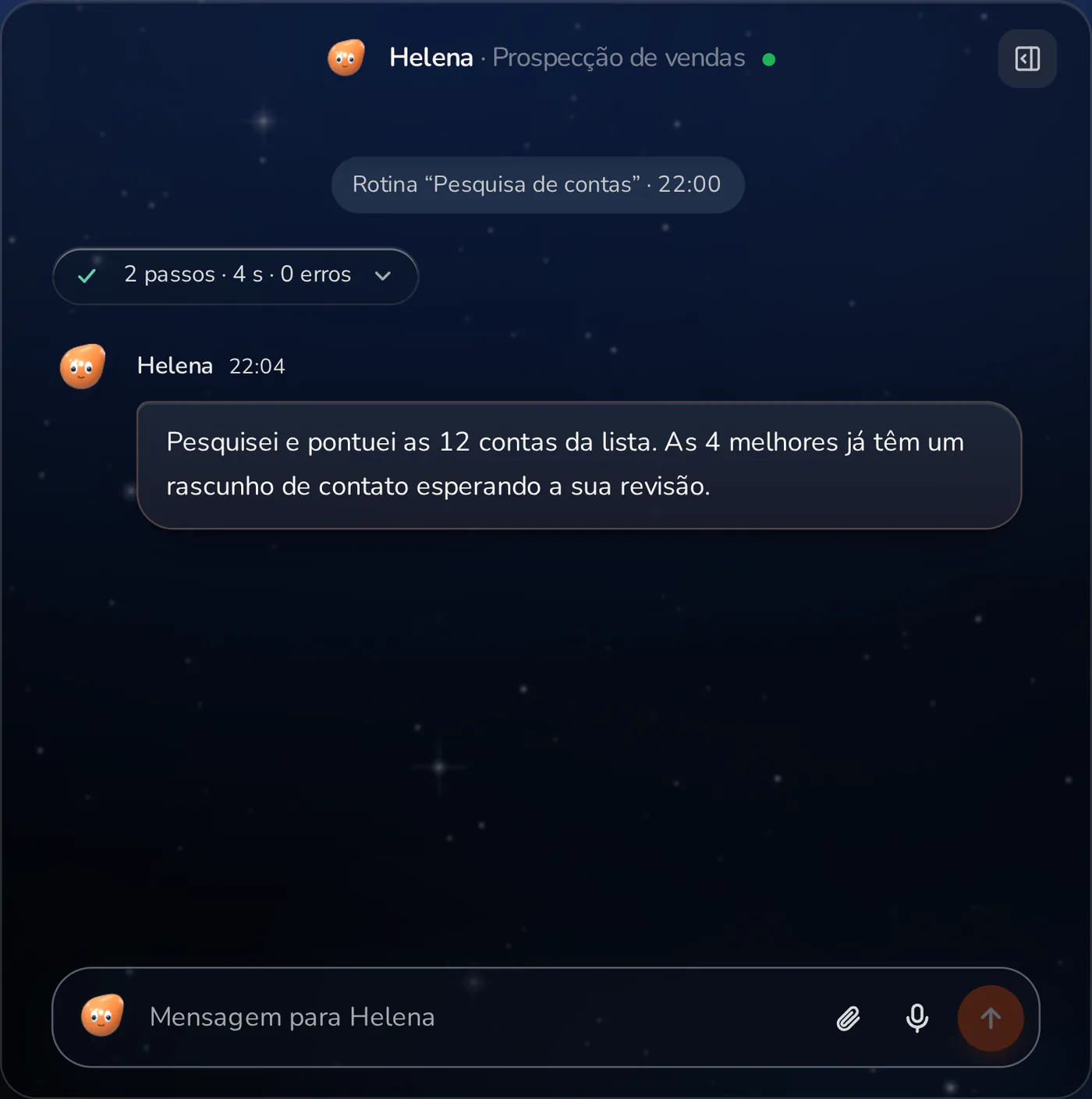
You sleep, tomorrow's list gets ready
Friday, 17:00 · Weekly close
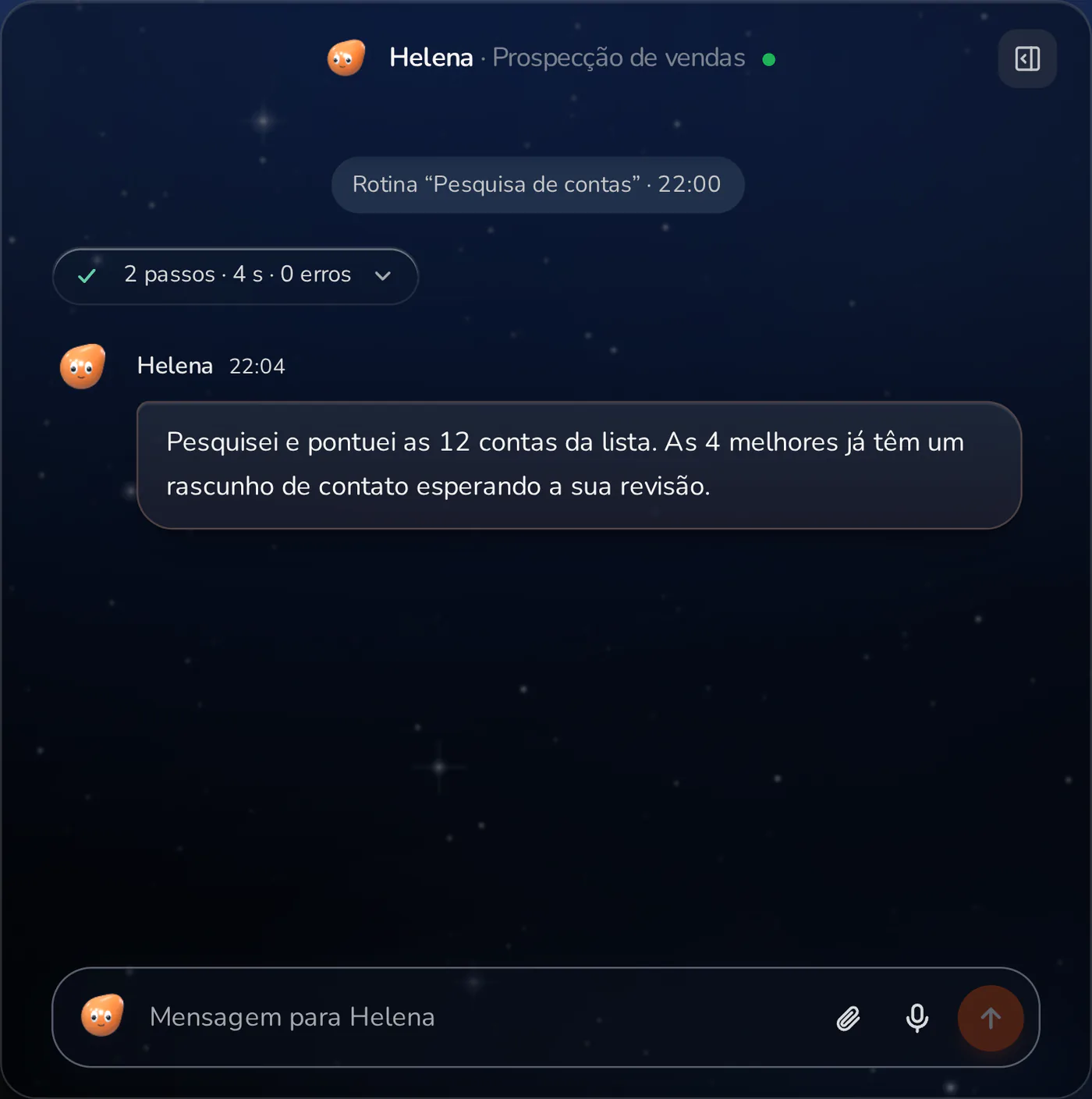
The week closes without a spreadsheet
The messages are examples. The times are each role's suggested routines, and you change everything before turning them on. If your computer is off, you choose whether the routine runs when it's back or skips that slot.
Control
Nothing goes out in your name without you. Click and see: the email waits for your yes, the password goes straight into the field without the bot seeing it, and everything is logged.
Email draft
Re: November quote
Hi Marina! Go ahead with the 40 units. I confirm delivery by the 12th and I'll send the receipt as soon as it's out.
Vault
painel.loja.com.br
••••••••••••Camila never sees this value
Activity
Commands, files, tools, searches and errors, with filters and risk flags.
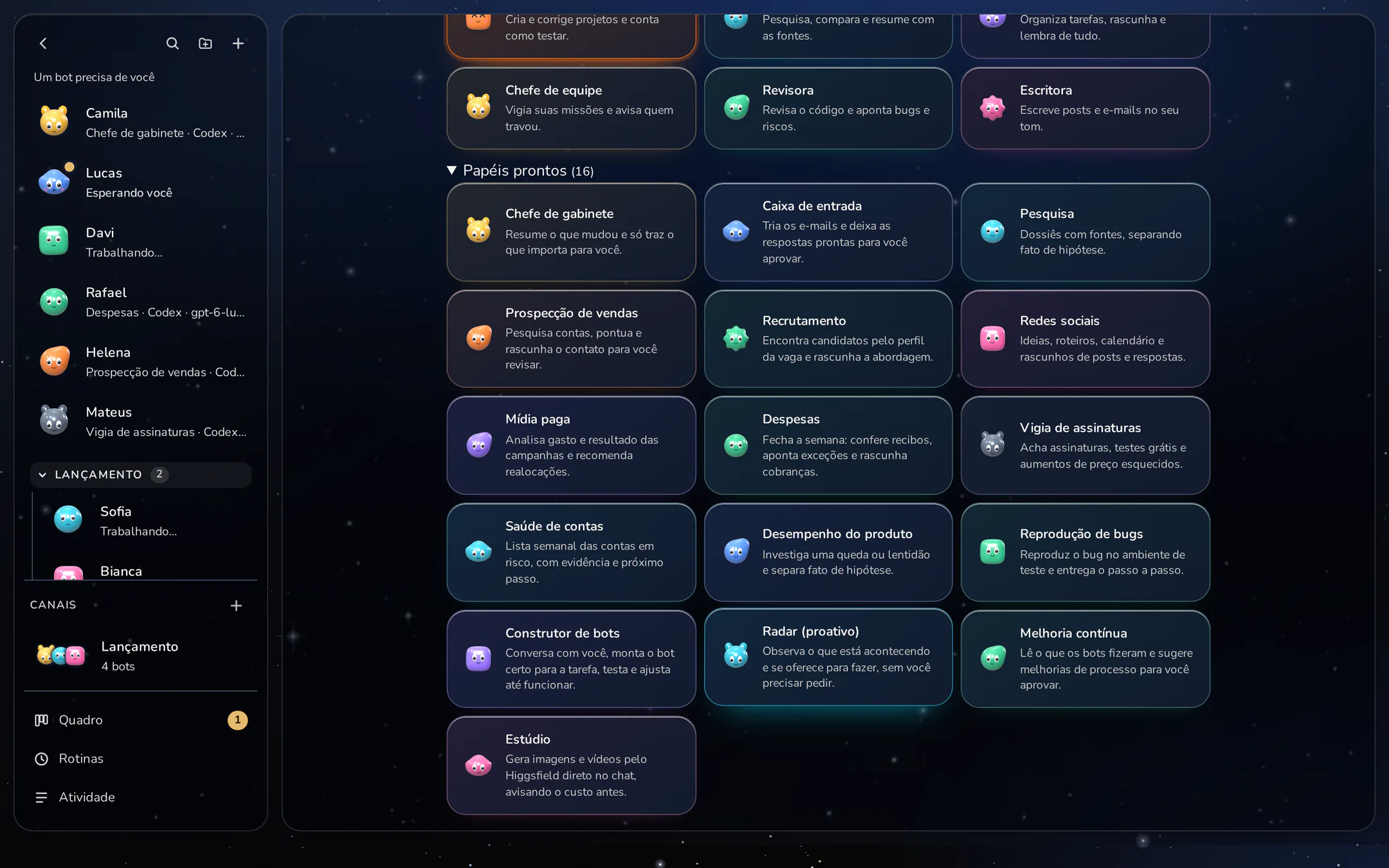
Sixteen ready-made roles
Each role comes with its job defined and, when it makes sense, connectors and a suggested routine. Change the name, the face, and the tone, or build a bot from scratch.
Sums up what changed and brings only what matters to you.
Suggested routine: Daily brief, 8 a.m. on weekdays
Triages email and leaves replies ready for you to approve.
Suggested routine: Triage at 9 a.m. on weekdays
Dossiers with sources, separating fact from hypothesis.
Researches accounts, scores them, and drafts the outreach for you to review.
Suggested routine: Account research at 10 p.m., Monday to Thursday
Ideas, scripts, a calendar, and drafts of posts and replies.
Suggested routine: Weekly ideas and calendar, on Mondays
Analyzes campaign spend and results and recommends reallocations.
Closes the week: checks receipts, flags exceptions, and drafts follow-ups.
Suggested routine: Weekly close, Fridays at 5 p.m.
Finds forgotten subscriptions, free trials, and price hikes.
Suggested routine: Sweep on Mondays at 10 a.m.
A weekly list of at-risk accounts, with evidence and next step.
Suggested routine: List on Mondays at 8:30 a.m.
Investigates a drop or slowdown and separates fact from hypothesis.
Reproduces the bug in staging and delivers the steps.
Talks with you, builds the right bot for the job, tests it and tunes it until it works.
Watches what is going on and offers to do the work, without you having to ask.
Suggested routine: Daily offers, 9 AM on weekdays
Reads what the bots did and suggests process improvements for you to approve.
Suggested routine: Weekly review, Fridays at 5 PM
Generates images and videos with Higgsfield right in the chat, telling you the cost first.
Routines and connectors are suggestions you change before turning them on. Email connects with a password just for Cockpit, which your provider generates; Google Drive and OneDrive connect through the folder their app syncs on your computer.
Channels
Put bots in a channel and ask once: the lead splits the work, or each one weighs in from its role. Duplicate a bot with its memory, export it as a template without conversations, memory, or keys, and let the lead build specialists, never with more access than it has.
#store-launch4 bots
You
I need to launch the new store on Friday. Split it up.
Camilalead
Done. Sofia researches the competitors, Bianca prepares the posts, Lucas emails the customer list. I'll pull it all together at 5 PM.
Sofiaresearch
Brief ready: prices and shipping for 6 stores, with sources.
Biancasocial media
Three posts and the week's calendar, saved as drafts.
Lucasinbox
Email to the list is ready. It waits for your yes.
Bots and the coding team, together
The bot that reads your email can call the AI team that codes. It sees your projects, hands the problem to the coding agents and brings the answer back.
LucasBot · inbox
A customer writes: the same payment shows up twice in her revenue.
DaviBot · bug reproduction
Reproduces the error in a test environment and writes the steps.
BuilderCoding agent
Fixes the problem and runs the project's tests.
ReviewerCoding agent
Checks the delivery. The checker is never the one who did the work.
LucasBot · inbox
Leaves the reply to the customer ready. It waits for your yes.
An example of how work passes from hand to hand. Every step is logged, and anything sent in your name still waits for your yes.
At a set time, on an interval, when another service pings it or when a file lands in a folder. Chain one after another and get the result on Telegram, Slack or Discord.
Gmail, Outlook, Yahoo and iCloud. The bot reads, searches, archives and writes; every send waits for your yes.
Your computer's Chrome or Edge, with a live preview. Do a task once and Cockpit writes the steps into a recipe (skill), turned off until you check it.
Logins, cards and notes, also from 1Password and Bitwarden. The password goes straight into the field, over https only.
Put bots in a channel and ask once: the lead splits the work, or each one gives the view of its role.
Commands, files, tools, searches and errors for every bot, with filters and risk signals.
Plans
No separate plan and no charge per bot. They run on your computer, with the AIs you already pay for.
Recommended
For one person, on one computer.
$14.90per month
Cancel anytime in the dashboard.
For people who use more than one computer.
$24.90per month
Cancel anytime in the dashboard.
Free trial of 7 days after confirming your card in Stripe, with Bots unlocked. A card is required before the trial starts.
An assistant with its own name, face, AI, and memory, for the work that isn't code: summing up your day, triaging email, researching, drafting posts, checking expenses. It runs in Cockpit on your computer, with the AI you connect.
No. It reads, searches, archives, and writes, but every send waits for your yes. Replies and messages become drafts for you to review. In the approval rules you decide what it can do without asking, and none of that applies while you're in I'm away mode.
No. Logins, cards, and notes stay in Cockpit's vault (you can bring them from 1Password and Bitwarden). When the bot needs to sign in to a site, the password goes straight into the field, over https only, and it never sees the value. You approve each use or choose “Always on this site” and revoke it whenever you like.
Bots use the AI you connect to Cockpit, just like the team does, and usage stays on your account. Bots are in the free trial and on every plan. Images and video use your Google, OpenAI, or fal key, with a monthly cost and limit.
You choose per routine: it runs once when the computer is back or skips that slot. Routines also fire on an interval, when another service pings them, after another routine or when a new file lands in a folder.
You choose for each bot: full access, like you, or only its own folder. The bot's browser is the Chrome or Edge on your computer, with a live preview, and everything it does is logged: commands, files, tools, searches, and errors.
Bots, the AI team, and every mode in the 7 days, with a card confirmed in Stripe. Automatic billing starts after the trial unless you cancel. Bots are included in every paid plan.
Your team of bots 7 free days, card confirmation required in Stripe
Start for free