



✻ Claude Code claude-opus-5-5 · Orchestrator
Cockpit
Tell us what you want to build.
An AI team builds and reviews it.
How it works
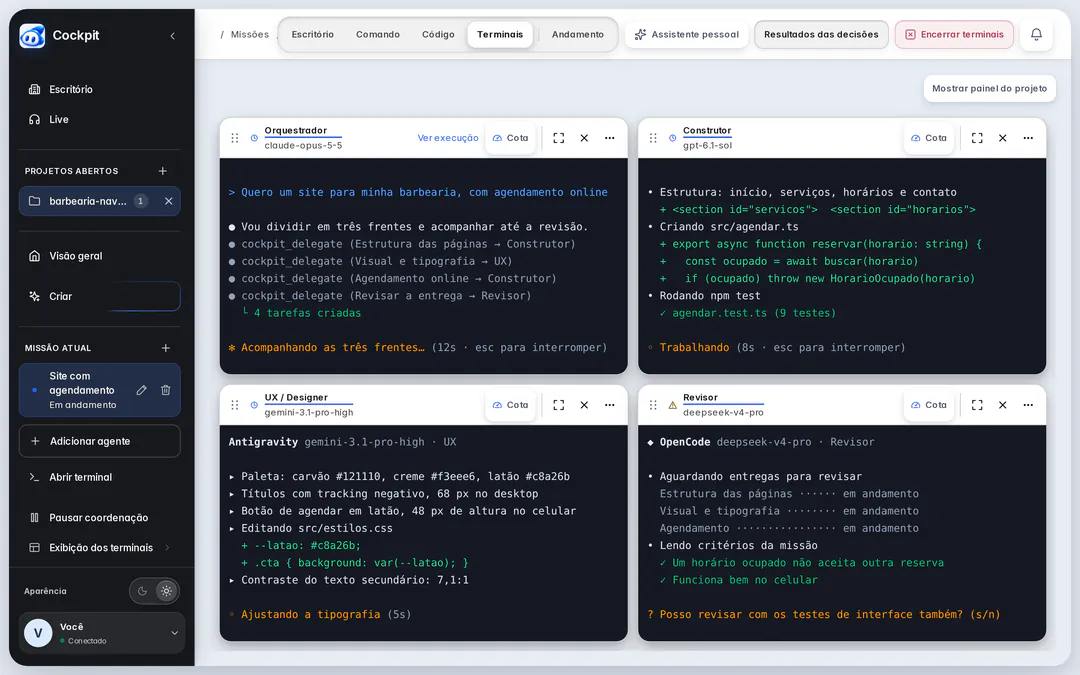
Cockpit interface demo using a sample project, in four steps: 1. You describe it: Write as if you were talking to someone. No technical prompts or port, folder, or server setup. 2. The team gets to work: Maestro assigns the tasks and each AI works in its own terminal, in parallel. Here: Claude, Codex, Gemini, and DeepSeek. 3. Tested and on screen: Every delivery passes type checks and tests before it reaches you. The site appears beside the conversation. 4. Refine or go back: Click what you want to change and describe it. The previous version is saved, just a click away.
You describe it. Write as if you were talking to someone. No technical prompts or port, folder, or server setup.
Free for 7 days, no credit card required.Try it free
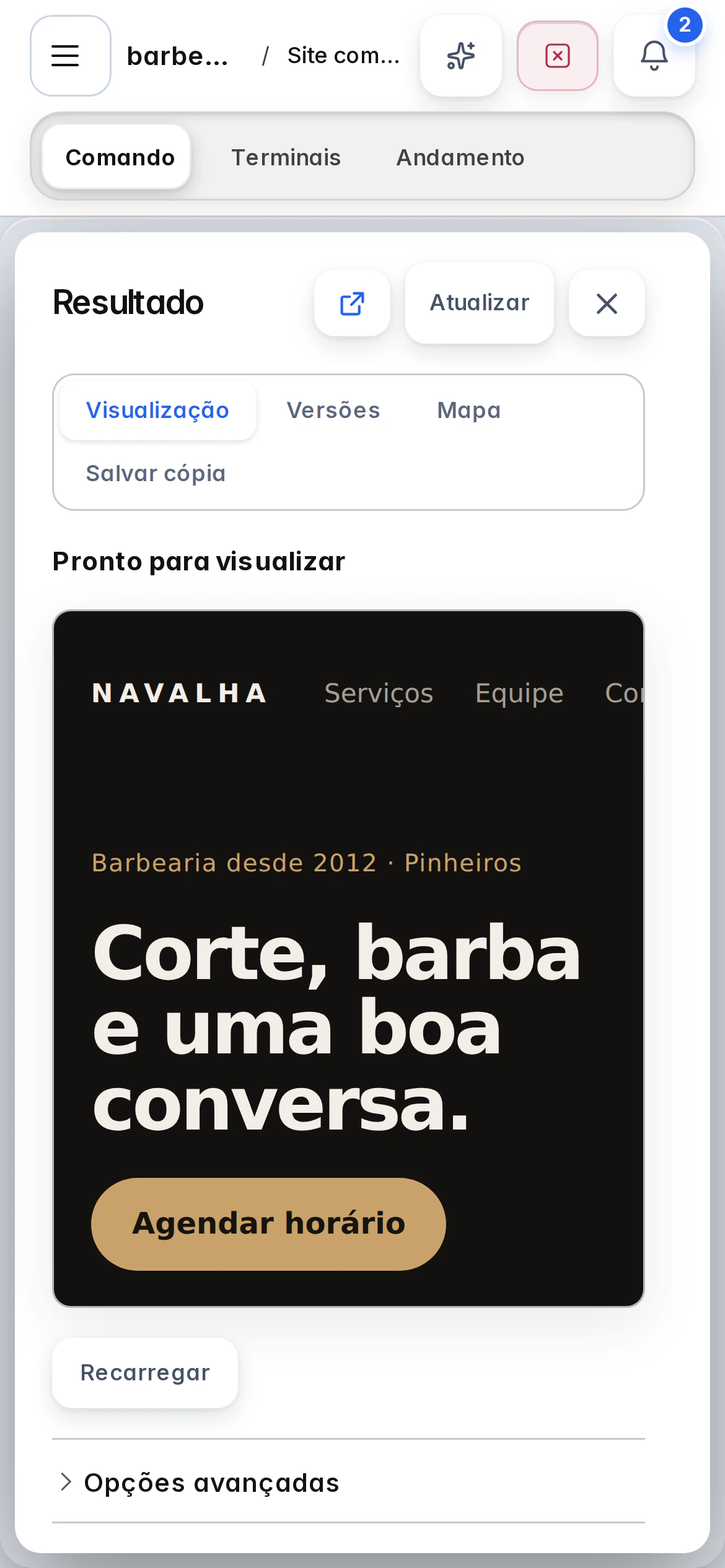
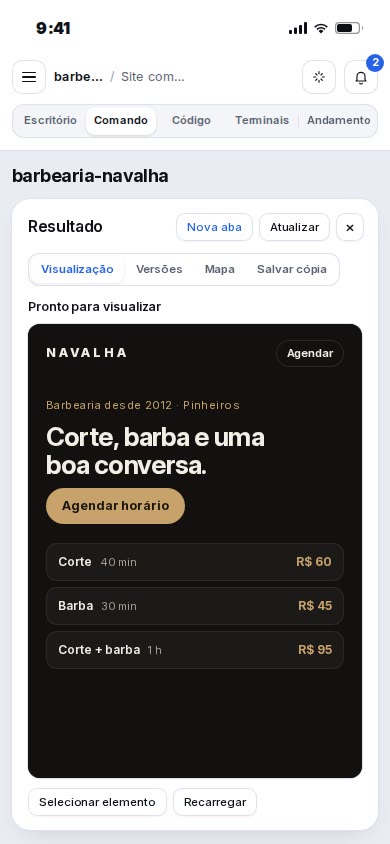
Cockpit interface demo using a sample project: the Navalha barbershop website. You'll see it throughout the sections below.
Supported AI
Use the AI you already pay for.
Cockpit charges a monthly subscription, never per token. Choose the AI and model for each team member. Usage stays on your own provider account.
With your existing account
Uses the subscription you already pay for.
- Claude Code
- Codex
- Gemini (Antigravity)
With a key or your CLI
Paste a key or use the CLI you already have installed.
- DeepSeek
- Kimi
- Grok (xAI)
- OpenAI
- OpenCode
- Grok CLI
Through a gateway or on your computer
Hundreds of models in one place.
- OpenRouter
- OpenCode Go
- FreeLLMAPI
- OmniRoute
- Any OpenAI-compatible API
Explore the highlights.
Team
Claude, Codex, Gemini, and DeepSeek on the same project.
Live preview
Watch your site take shape as they work.
Verification
It's only “done” when the tests pass.
Versions
Want to undo it? Go back.
Context
Get a warning before your AI runs out of context.
Work modes
One project, four ways to work.
Live
Share your project live, right inside Cockpit.

On your phone
Review and approve from anywhere.




Team
Codex for pages. Gemini for design. DeepSeek for review.
Maestro breaks down your request, specialists work in parallel, and Reviewer checks the result before it reaches you. You choose who does what, and with which AI.
Maestro coordinates the team members you chose, without opening new agents.
- 9
- built-in roles, from Maestro to Finisher
- 16
- agents per mission on every plan, within the limit you set
- BRL 0
- per token. Each AI bills your own account directly
Live preview
Want a change? Click it.
Click anywhere in the preview and describe what you want. Your request includes the element and the version you were viewing.
Barbershop since 2012 · Pinheiros
A cut, a shave, and good conversation.
Book an appointmentHaircut40 minBRL 60
Beard30 minBRL 45
Haircut + beard1 hBRL 95
Today's appointments
09:3011:0014:3016:0018:30
1. Pick an element in the preview
OrchestratorYour preview is ready. Click anywhere on the site to request a change.
Try asking for something like
“Make the button bigger”“Highlight the haircut and beard combo”“Make time slots bigger on mobile”Ask for a change…
Your preview sets itself up
Cockpit finds your project's server or starts one. No ports, IPs, or folders to choose.
Apps straight to your phone
Open Expo projects on your phone via QR code, on the same network as your computer.
Rules that carry through
Project decisions and references go with every request, even when you switch models.
Verification
It's only “done” when the tests pass.
After an AI delivers, Cockpit runs your project's type checks and tests. If a check fails, the task goes back with the error, up to twice.
Automatic checks
●Builder delivered: booking with available time slots
Delivery reviewsrc/lib/agendar.ts · +6 −1 · Verification passed
export async function reservar(horario: string) {- await salvar(horario)+ const ocupado = await buscar(horario)+ if (ocupado) {+ throw new HorarioIndisponivel(horario)+ }+ await salvar(horario)+ return { horario, confirmado: true }}Reviewer · Codex The new test covers the booked-slot rule.
Approve deliveryRequest a fix
No agent can approve a delivery with failing tests: only you can, after seeing the failure. Agents cannot approve their own work. Want the final say every time? Enable “Only you” for the mission and agent approvals become recommendations. Projects without typecheck or test scripts are shown as unverified, never approved.
Versions
Go back. In one click.
Before every request, Cockpit saves a version of your project. Compare before and after, then restore whenever you want. Your current state is saved too.
Barbershop since 2012 · Pinheiros
A cut, a shave, and good conversation.
Book an appointmentHaircut40 minBRL 60
Beard30 minBRL 45
Haircut + beard1 hBRL 95
Today's appointments
09:3011:0014:3016:0018:30
File version: e94b5f02
Go back to a version that worked
- Before: Make the colors more vibrantToday, 15:42 · 8c1d2e04
- Before: Service cards and a bigger buttonToday, 15:20 · 3f2a91c7
- Before: Show today's available appointmentsToday, 15:02 · b71e0a39
- Before: I want a website for my barbershopToday, 14:48 · 52c4d8e1
Don't like the colors the AI chose? Compare with “Before: Make the colors…” and restore.
Up to 50 versions per project. Projects requiring a build are built separately for comparison, without touching your files. Copies exclude .env files, known credentials, and dependencies; external data and running processes aren't restored.
Context
Keep the conversation going.
Cockpit tracks context for Claude and Codex and warns you at 60% and 75%. Save a summary and start a fresh session in one click. Handing off to another AI? It receives the objective, decisions, and open items.
Context meter
Orchestratorclaude-opus-5-5
Context41%
060%75%
The conversation grows with every request…
Model and effort
Reasoning effortHigh
DefaultMaximum
Applying this restarts only this agent. Your files and request history are preserved.
Try changing the model or reasoning effort.
- Mission objective
- Agreed decisions
- References
- Files in context
- Open items
- Recent conversation
Account quota
5-hour window22% remainingResets at 4:40 PM
weekly61% remainingResets Fri, 9:00 AM
Limits reported by the agent. Updated: 2:32 PM
Quotas come directly from the agent, with the time they were read. If the agent doesn't report a quota, Cockpit doesn't make one up.
Work modes
One project,
four ways to work.
Office, Command, Code, and Terminals. Switch with Alt+1 through Alt+4. Your team keeps working as you switch.


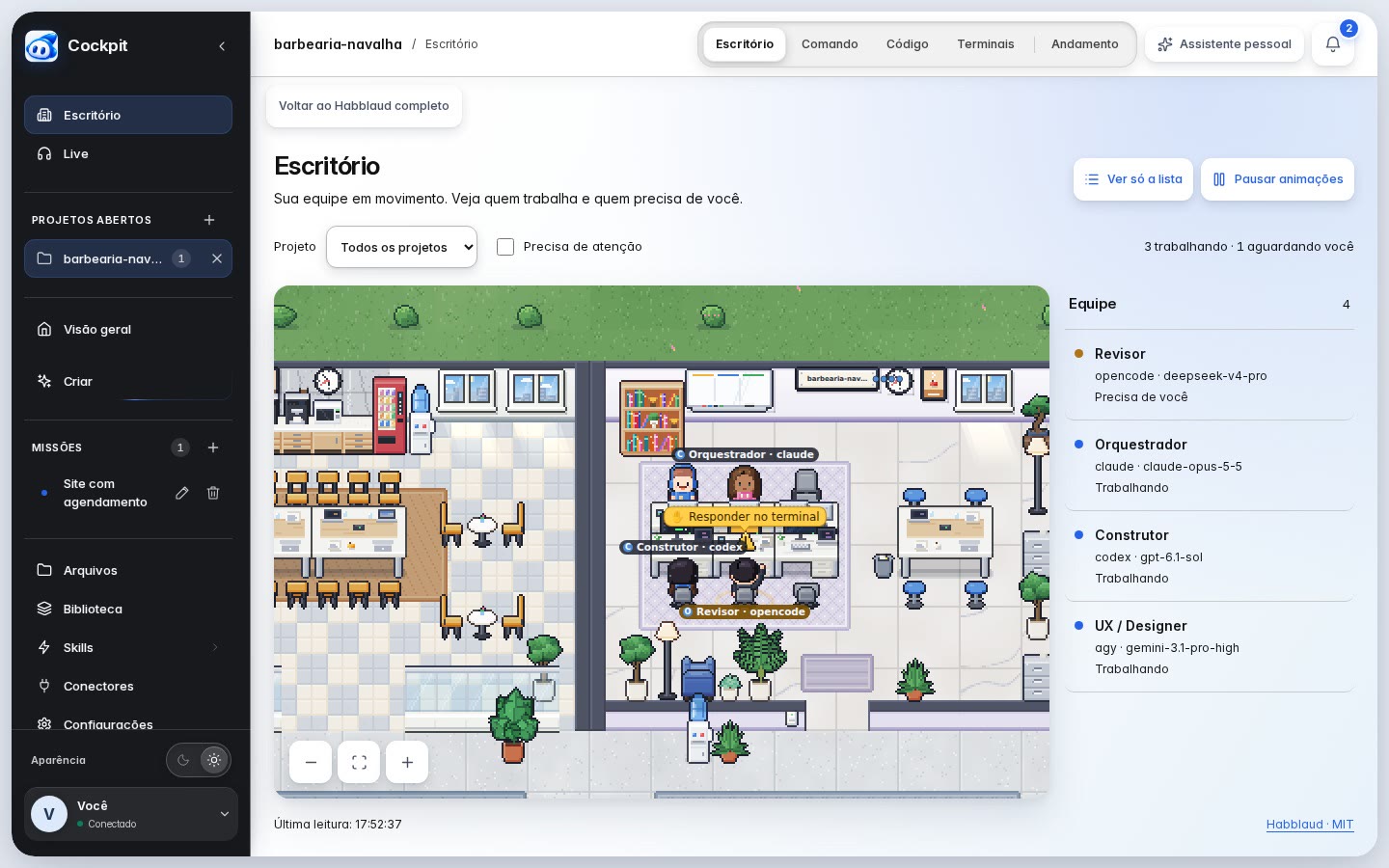
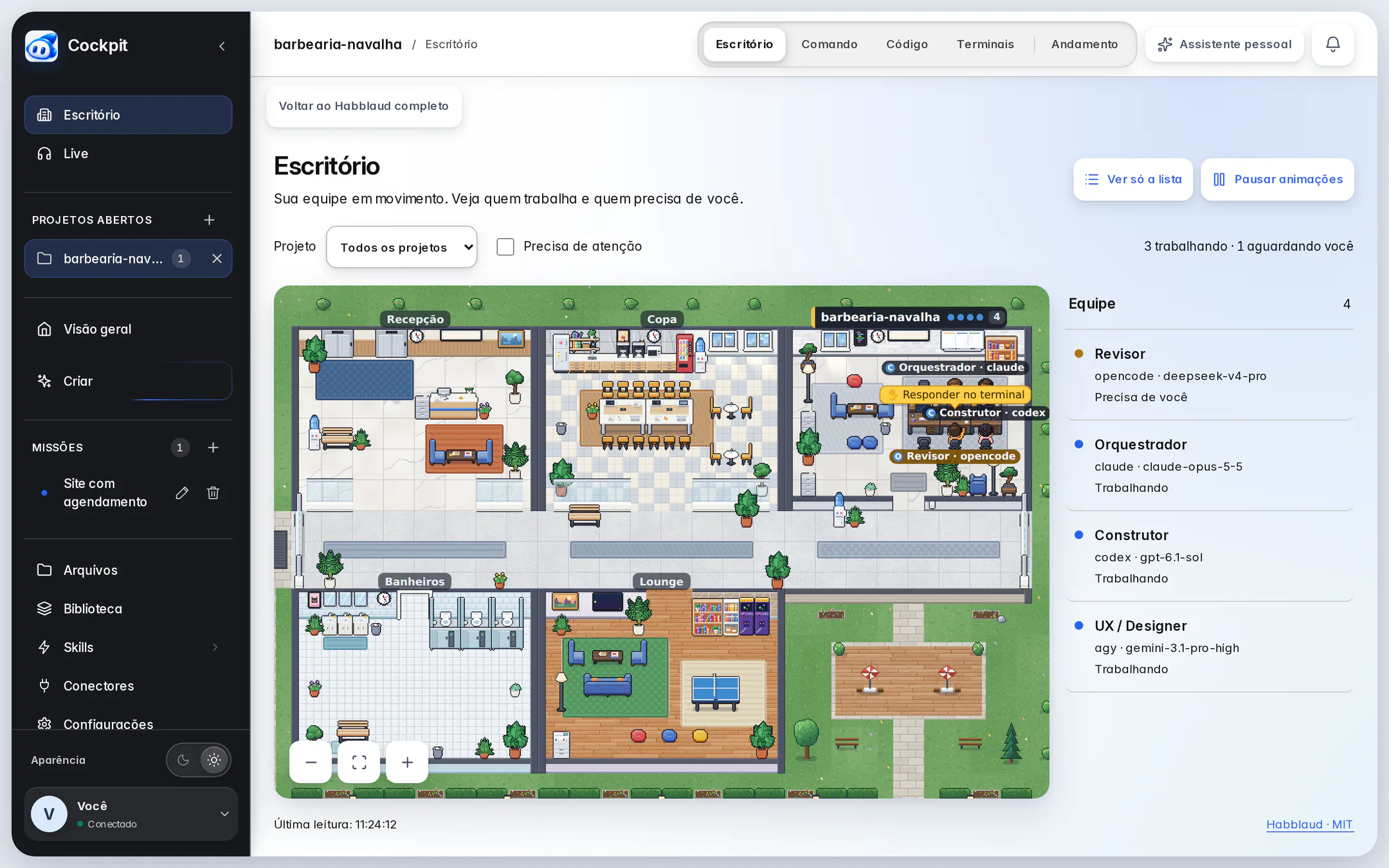
Your team in motion. Each agent becomes a character in an office. Working agents sit at their desks, idle agents head to the kitchen or lounge, and anyone who needs you raises a hand, with a shortcut to reply in their terminal.
Alt1
Cockpit screenshots using a sample project and team. Office uses Habblaud, an open-source project (MIT license) included with Cockpit. Tracking sessions started outside Cockpit and using Habblaud's online city require separate configuration.
New: Live
Share your project live.
Invite someone into a room and talk by voice, with screen sharing, camera, and chat. Leave the room view and the call floats above your workspace, right inside Cockpit.
Cockpit Live demo: a voice call with Rafael from Navalha barbershop, with chat open; then the same call as a floating video window, a capsule, and a bubble over Cockpit's Office.
In the room: voice, screen sharing, optional camera, and chat alongside.
No extra sign-in
Use your Cockpit account to join. Your guest can access only the room, without access to your projects, files, or agents.
A direct connection
Voice and screen sharing travel directly between your computers. Cockpit doesn't record the call.
From any view
Call shortcuts work throughout Cockpit.
- AltMmicrophone
- AltEcamera
- AltSscreen
- AltLchat
Live is a pilot: each room supports two people. Invitations expire after 15 minutes, work once, and can be revoked. Chat messages are stored for up to 24 hours. Some networks block direct connections, preventing the call from connecting.
On your phone
Approve from anywhere.
Cockpit runs on your computer and opens in your phone's browser. Invite a device by QR code and choose whether it can only view or also control.
- View or control: choose per device
- Delivery, review, and blocker alerts on Telegram
- Speak instead of typing. Transcription runs on your computer
Features
Built for everyday work.
Light, dark, and nine more themes.
Themes update the interface and terminals together without restarting any agents. Or make it yours: colors, fonts, borders, and a background image, applied globally, per project, or per agent.
Race mode
Two AI agents tackle the same task in parallel. Compare their results and pick the winner.
Speak instead of typing
Transcription runs locally with Whisper. Your audio isn't sent to an external service.
Project map
Screens, services, data, and libraries, read from your current files. Tap a file to see its contents.
AI creation guide
Not sure where to start? Pick your stage, read the guide, and prepare a request you can review before sending.
Pick up where you left off
Restarted the server? Terminals, agent processes, and history stay right where they were.
Personal assistant
Ask about your project with the AI you choose. It reads the actual task state, and notifications reach you on Telegram.
160 built-in skills
From 25 sources, plus a marketplace, ready-made teams, and MCP connectors with estimated token costs.
Privacy
Your code stays on your computer.
Cockpit runs on your machine, with your files, your Git, and your AI accounts. This website manages your account and license. Your projects, AI conversations, and files never pass through it.
Signed license
Bound to your computer and verified with an Ed25519 signature.
Offline? Keep working
Your license is checked online periodically. Offline, Cockpit stays unlocked for up to 7 days on Pro and 30 on Max, always within your paid period.
Protected keys
API keys are encrypted on your computer.
Your costs, direct
Each AI provider bills your account directly. No hidden markup.



Getting started
From sign-up to your first request.
- 1
Create your account
Just your email: you'll receive a 6-digit code, no password needed. Your 7 -day trial starts immediately, no credit card required.
Create an account - 2
Download Cockpit
For macOS, Windows, and Linux. The download page explains each system's requirements and installation steps.
Go to downloads - 3
Activate and ask
Generate a key in the dashboard and paste it into Cockpit. Connect the AI you already use and describe your first idea.
Plans
Try everything for 7 days.
No credit card to try it. No cancellation fees. If it's not for you, your projects stay on your computer.
Recommended
Pro
For people building on up to 3 computers.
$14.90per month
- Full team, up to 16 agents
- Up to 3 computers
- 2 concurrent Cockpit instances
- Up to 7 days offline
Cancel anytime in the dashboard.
Max
For people who use up to 10 computers or want priority support.
$24.90per month
- Full team, up to 16 agents
- Up to 10 computers
- 5 concurrent Cockpit instances
- Up to 30 days offline
- Priority support
Cancel anytime in the dashboard.
Still deciding? Try it free for 7 days.
Full access, with the complete team, on 1 computer. No credit card required. When your trial ends, your projects stay on your computer.
Included in every plan and the trial
- Full team: up to 16 agents per mission
- AI team with Maestro, Reviewer, and Verifier
- Live preview and element selection
- Tests and type checks for every delivery
- A version saved before every request
- Office, Code, Terminals, and Progress
- Live, mobile access, and Telegram notifications
- Local voice input, 11 themes, and 160 built-in skills
- Personal assistant and MCP connectors
AI usage is billed separately by each provider to your own account. Payments are processed by Stripe in the currency shown.
Questions? We've got answers.
You don't need to know how to code to build. Describe what you want, follow the preview, and click what you'd like to change. Terminals, files, and Git are still there whenever you want to go deeper.
Cockpit charges only its subscription, never per token. AI usage stays on your own account, just as it does today, with no middleman or markup. If you already subscribe to Claude or ChatGPT, Cockpit works with that subscription.
Before every request in the Create screen, Cockpit saves a project version. Compare before and after, see changed files, and restore whenever you like. Your current state is saved before restoring, so you can go back again.
No. Cockpit runs on your computer with your files, Git, and AI accounts. It only contacts this website for licensing: your key, a random computer identifier, its name, and usage counts such as open projects and agents, unless you disable them in Settings › License. Never project names, paths, conversations, or code. In Live, voice and screen sharing travel directly between participants; only room information and chat pass through the Live service.
Anytime, under Manage subscription in the dashboard. No need to contact anyone, and no cancellation fee.
Claude Code, Codex, and Gemini (through Antigravity) use your account sign-in and existing subscription. DeepSeek, Kimi, Grok, and OpenAI use API keys; OpenCode and Grok CLI use their own CLI authentication. OpenRouter, OpenCode Go, FreeLLMAPI, OmniRoute, and any OpenAI-compatible API give you access to hundreds of models, including Qwen, GLM, MiniMax, Llama, Mistral, and local models. Each team member can use a different AI and model.
Both include all of Cockpit and a full team: up to 16 AI agents per mission, live previews, verification, versions, and mobile access. The difference is capacity. On Pro, up to 3 computers and 2 concurrent Cockpit instances. On Max, up to 10 computers, 5 concurrent Cockpit instances, more offline days, and priority support.
For cloud AI, yes, just as with any other way of using it. A local model running on your computer doesn't need a connection. The license is checked online periodically. If your connection drops, work doesn't stop immediately: Cockpit stays unlocked for up to 7 days on Pro and 30 on Max, until it can check again, always within your paid period. Work already running in a mission finishes; new tasks wait until the license is restored. Your projects always stay on your computer.
It's a way to see your team as characters in an animated office. See who's working, who's waiting for your reply, and open each agent's terminal. It's built with the open-source Habblaud project, included with Cockpit, and also offers a list view if you prefer less animation.
Yes, with Live: voice calls, screen sharing, optional camera, and chat, inside Cockpit with the same account. Guests can only enter the room, without access to your projects. Live is a pilot with two-person rooms.
Yes. Switch the interface between Portuguese and English, and choose the agents' response language separately. Project names, requests, and code stay exactly as you wrote them.
When an agent delivers, Cockpit runs your project's existing type checks and tests. If a check fails, the task goes back to the agent with the error log, up to twice. Only you can approve a delivery with failing tests. Projects without tests are marked as unverified, never approved.
Yes. It runs directly on Linux and macOS, and through WSL2 on Windows. The download page lists the requirements for each system.
Yes. Cockpit runs on your computer and you access it in your phone's browser. Invite the device by link or QR code and choose view-only or full control. All four work modes and Progress fit on a phone, and delivery, review, and blocker alerts can also reach you on Telegram.
Cockpit asks for a subscription to keep building. Nothing is deleted: projects, versions, and history stay on your computer, just as you left them.
What will you build?
Take 7 days to find out what Cockpit can do for your project.
No credit card required.